



 All gift cards
 Ecommerce
 Prepaid Cards
 Phone Refills
 Games
Games
 Shopping
 Groceries
 Apparel
 Retail
 Music
Music
 Travel
 Entertainment
 Electronics
 Streaming
 Home
Home
 Food
Food
 Automobiles
 Experiences
 Health & Beauty
 VoIP
VoIP
 Pets
Pets
 Data
Data
 Bitcoin
 Other products

 English



Can I Add Gift Cards To Apple Wallet?
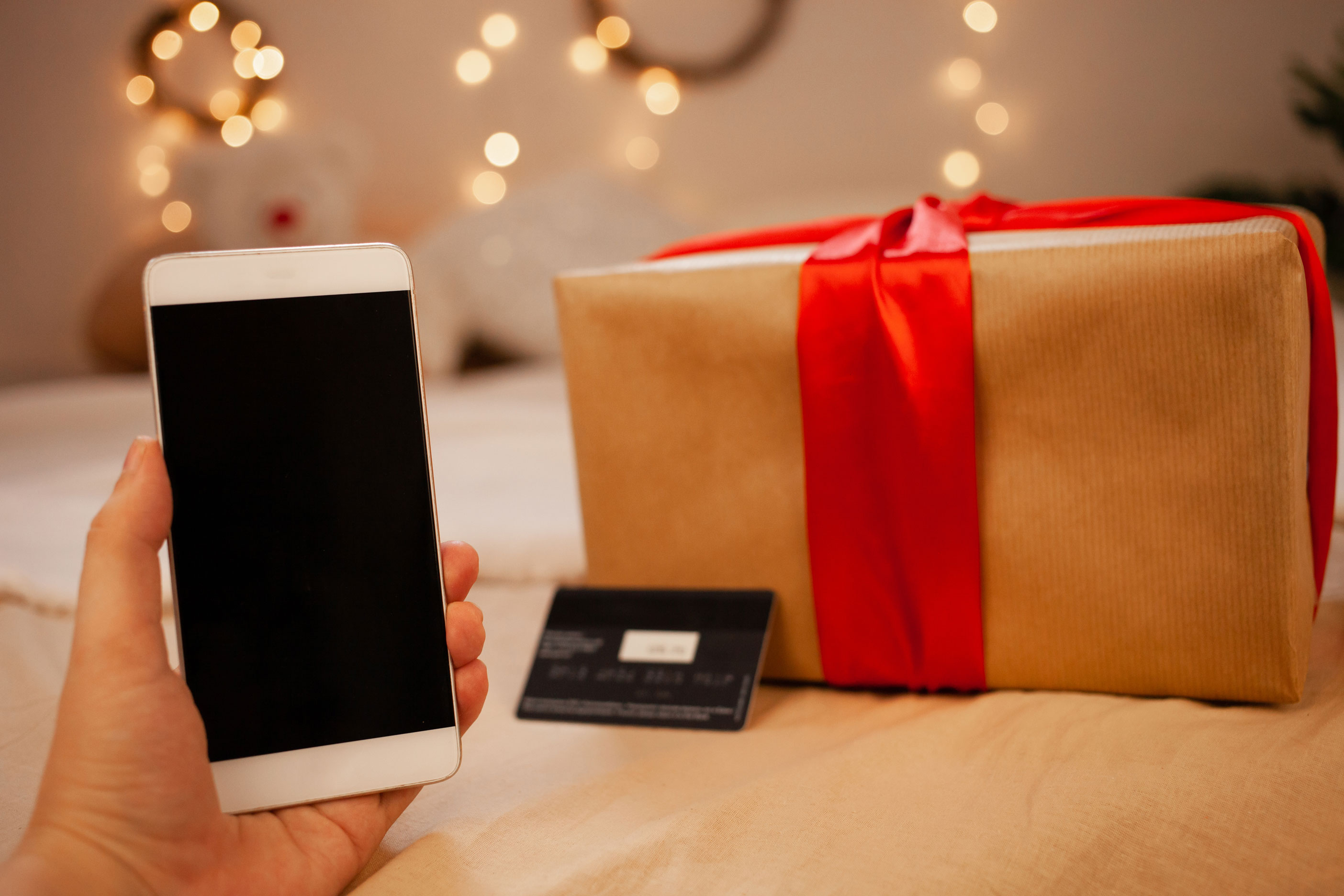
We will explore the types of gift cards compatible with Apple Wallet, the steps to add them, and the benefits of using gift cards within this versatile application.

Understanding Apple Wallet and Its Features
Apple Wallet is a versatile application designed to store various digital cards, including credit cards, boarding passes, event tickets, and, notably, gift cards. This user-friendly app simplifies daily transactions and enhances your overall digital experience. Here are some of the core features of Apple Wallet:
Convenience:
- Access all your cards in one place.
- Easily use your iPhone or Apple Watch to make purchases without the need for physical cards.
Contactless Payments:
- Apple Wallet supports Apple Pay, enabling secure, contactless payments at millions of locations worldwide.
Real-time Updates:
- Stay informed with real-time notifications regarding your card usage, balance updates, and expiration dates.
Organizational Tools:
- Users can categorize their cards, making it easy to find specific ones when needed.
Location-based Notifications:
- Receive alerts when you're near a store that accepts your gift cards, maximizing the benefits of using Apple Wallet.
In conclusion, the Apple Wallet is not just a simple storage solution; it integrates various functionalities that enhance convenience and improve your shopping experience. With the ability to seamlessly add gift cards, it provides a practical way to manage and use them efficiently.
Types of Gift Cards Compatible with Apple Wallet
Using Apple Wallet to store gift cards offers a seamless experience for managing your purchases and rewards. However, not all gift cards work with the app. Here are the primary types of gift cards you can successfully add to your Apple Wallet:
Retail Store Gift Cards: Many popular retailers, such as Amazon, Walmart, and Starbucks, support digital versions of their gift cards. These can easily be added, allowing for quick access during checkout.
Restaurant Gift Cards: Chains like Domino's or Chipotle allow you to store their gift cards in your Apple Wallet. This convenience enables hassle-free payments while dining out.
Digital Gift Cards: Platforms like PayPal or eGift card services allow you to add their digital gift cards directly to your Apple Wallet. These provide flexibility since you can often purchase and store them online.
Loyalty Cards: Various stores merge gift card functionality with loyalty programs. Brands such as Sephora and CVS combine gift cards and loyalty points, making them perfect for addition to Apple Wallet.
Comparison of Gift Card Types
| Gift Card Type | Store Purchase Availability | Online Purchase Support | Compatibility with Apple Wallet |
|---|---|---|---|
| Retail Store Gift Cards | Yes | Yes | Yes |
| Restaurant Gift Cards | Yes | Yes | Yes |
| Digital Gift Cards | Yes | Yes | Yes |
| Loyalty Cards | Often | Yes | Yes |
By understanding these categories, you can maximize the benefits of using your Apple Wallet for gift cards, ensuring quick and easy transactions throughout your shopping experiences.
How to Add Gift Cards to Apple Wallet
Adding gift cards to your Apple Wallet is a straightforward process that enhances your shopping experience by keeping all your cards organized in one place. Follow these simple steps to add your gift cards seamlessly:
Open the Apple Wallet App: Launch the app on your iPhone or Apple Watch.
Tap on the "+" Button: This button allows you to add new items to your wallet.
Select "Add Card": Choose this option to add a new gift card.
Scan or Enter Card Information:
- Using the Camera: Point your camera at the gift card. The app will automatically capture the details.
- Manual Entry: You can also type in the card number and other relevant details if scanning fails.
Add Balance (if applicable): Some gift cards allow you to add balance directly within Apple Wallet. Follow the prompts to load more funds if necessary.
Complete the Process: Once you have entered all required information, tap "Add" to finalize the process.
Tips to Remember:
- Ensure your Apple Wallet is updated to the latest version for optimal functionality.
- Check if the gift card is compatible with Apple Wallet before adding it.
By following these steps, you can easily manage your gift cards in your Apple Wallet and access them anytime you shop.
Troubleshooting Common Issues When Adding Gift Cards
Adding gift cards to Apple Wallet can occasionally present challenges. However, you can easily resolve most issues with a few troubleshooting tips.
Here are some common problems and their solutions:
Incompatible Gift Card Format
- Solution: Ensure your gift card is compatible with Apple Wallet. Specifically, check if the retailer supports it.
Not Using the Latest iOS Version
- Solution: Update your iPhone to the latest version of iOS. Settings > General > Software Update will help you maintain compatibility with Apple Wallet features.
Poor Internet Connection
- Solution: Ensure you're connected to a stable Wi-Fi or cellular network. A shaky connection can disrupt the card addition process.
Insufficient Storage Space
- Solution: Check your device's storage. Go to Settings > General > iPhone Storage. If it's full, delete unnecessary files or apps to free up space.
App Issues
- Solution: If you're using a third-party app to add a gift card, ensure it's up-to-date. Also, restarting the app or your phone can resolve minor glitches.
By following these steps, you can effectively troubleshoot common issues when adding gift cards to Apple Wallet. If problems persist, consider contacting customer support for assistance. Enjoy the convenience of managing your gift cards seamlessly with Apple Wallet!
Benefits of Using Gift Cards in Apple Wallet
Using gift cards in your Apple Wallet offers a variety of benefits that enhance convenience and security. Here are some key advantages:
Easy Accessibility: Store all your gift cards in one digital location. No more rummaging through wallets or losing physical cards; your Apple Wallet provides quick access at checkout.
Faster Checkout: Scan your gift card directly from your Apple Wallet. This speeds up the purchasing process, allowing you to breeze through transactions without hassle.
Balance Tracking: Keep tabs on your gift card balances effortlessly. Apple Wallet automatically updates your card balances, so you always know how much remains for your next purchase.
Automatic Organization: Your gift cards are organized neatly within the Apple Wallet, and you can access them based on categories or stores. This structure simplifies tracking and redeeming cards.
Enhanced Security: Using Apple Wallet adds a layer of security. Your sensitive information is encrypted and stored securely, minimizing the risk of losing your card details.
Integration with Apple Pay: If the store accepts Apple Pay, you can seamlessly use your gift card in conjunction with this feature, maximizing the ease of payment.
By integrating gift cards into your Apple Wallet, you maximize convenience and enjoy a more streamlined shopping experience.
Alternatives to Gift Cards in Apple Wallet
While gift cards are a popular option for storing in the Apple Wallet, several alternatives offer similar convenience and benefits. These alternatives allow users to manage their finances more effectively while enjoying the seamless experience that Apple Wallet provides. Here are some noteworthy options:
1. Loyalty Cards
- Many retailers offer loyalty programs that can be added to your Apple Wallet.
- Benefits include earning points or rewards for purchases, discounts, and exclusive offers.
2. Membership Cards
- Fitness centers, clubs, and organizations often provide digital membership cards.
- Storing these in your Apple Wallet simplifies check-ins and membership management.
3. Transit Cards
- Many urban transit systems allow users to store transit cards within the Apple Wallet.
- This feature enhances convenience by eliminating the need for physical cards.
4. Event Tickets
- Concerts, sports events, and travel tickets can be stored in Apple Wallet.
- Accessing your tickets digitally helps avoid losing paper copies.
5. Digital Coupons
- Various retailers allow users to save digital coupons in the Apple Wallet.
- You can easily redeem them during checkout without carrying paper coupons.
By considering these alternatives, users can maximize the functionality of their Apple Wallet while enjoying the benefits of a cash-free lifestyle. Each of these options provides ease of access and simplifies transactions, making daily activities more efficient.
Managing and Accessing Your Gift Cards in Apple Wallet
Effectively managing and accessing gift cards in your Apple Wallet enhances your shopping experience. Here’s how to make the most of your digital gift cards:
Accessing Your Gift Cards
- Open Apple Wallet: Simply launch the Apple Wallet app on your iPhone.
- Select Your Card: Scroll through your cards to locate the specific gift card you need.
Managing Gift Cards
To keep your Apple Wallet organized and efficient, consider these tips:
- Add Notes: For easy identification, add notes to your gift cards. This can include the store name or expiration date.
- Reorder Cards: Use the drag-and-drop feature to rearrange your cards, placing frequently used gift cards at the top.
- Delete Unused Cards: Regularly remove any expired or unused gift cards by selecting the card and tapping the “Remove” option.
Usage Tips
- Check Balance: To check your gift card balance directly within the Apple Wallet, select the card and look for the balance displayed.
- Scan for Purchases: Easily pay with your gift cards by scanning them at participating retailers that accept Apple Wallet.
By effectively managing and quickly accessing your gift cards in Apple Wallet, you streamline your payment process and ensure a smoother shopping experience.
Security Features of Apple Wallet for Gift Cards
When it comes to storing and managing gift cards, the Apple Wallet offers several robust security features to ensure your information remains protected. Here’s how Apple Wallet keeps your gift cards safe:
Encryption: Apple Wallet encrypts your gift card information. Only you can access this data, which prevents unauthorized users from easily retrieving it.
Face ID and Touch ID: To access your Apple Wallet, you can use biometric features such as Face ID or Touch ID. This adds an extra layer of protection, ensuring only you can open your wallet.
Find My iPhone: If you lose your device, the Find My iPhone feature allows you to locate it or remotely wipe your data. This ensures that sensitive information, including your gift cards, remains secure.
Transaction Notifications: Apple Wallet provides real-time notifications for transactions made with your gift cards. This helps you keep track of your spending and detect any unauthorized activity immediately.
Secure Element: The Secure Element technology within Apple devices securely stores your information for added protection. This hardware feature safeguards your gift card details from external threats.
Overall, the Apple Wallet combines advanced technology and user-friendly features to ensure your gift cards are not only easily accessible but also thoroughly protected. This allows you to enjoy your gift cards without worrying about security risks.
Conclusion: Making the Most of Gift Cards with Apple Wallet
In conclusion, utilizing Apple Wallet for your gift cards offers a convenient and efficient way to manage, store, and use them. By adding gift cards to the Apple Wallet, you gain easy access to your balances and can redeem rewards seamlessly at checkout. Here are some key takeaways to consider:
- Organization: Keep all your gift cards in one place, minimizing the hassle of carrying physical cards.
- Convenience: Access your gift cards whenever you need them without needing to search through your wallet or purse.
- Rewards Tracking: Many gift cards in Apple Wallet come with points or rewards that can help you earn more over time.
Additionally, you can ensure maximum security of your gift cards using Touch ID or Face ID, safeguarding your balance even if your device is lost.
To enhance user experience, consider exploring other features of the Apple Wallet, such as integrating passes or tickets alongside gift cards. This comprehensive approach can simplify your financial management and improve your shopping experience.
Ultimately, fully embracing Apple Wallet for your gift cards will not only streamline your purchases but also enrich your overall digital wallet experience—making it a smart choice for anyone looking to maximize efficiency and security.
Frequently Asked Questions
Can I add any type of gift card to my Apple Wallet?
Apple Wallet allows you to store a variety of gift cards; however, the compatibility may depend on the retailer. Many popular brands like Starbucks, Target, and others support the addition of their gift cards. You can typically add gift cards that have QR codes or barcodes which can be scanned at the point of sale. Always check with the retailer to see if their gift cards are compatible with Apple Wallet.
How do I add a gift card to my Apple Wallet?
To add a gift card to your Apple Wallet, open the Wallet app on your device, tap on the '+' icon, and choose 'Add Credit or Debit Card' or 'Scan Code.' If prompted, scan the gift card's barcode or enter the card details manually. Follow any additional prompts to complete the process. Make sure your iPhone or iPad is updated for the best compatibility.
What if the gift card does not have a barcode?
If your gift card doesn’t have a barcode, you might still be able to add it by entering the card number and PIN manually if it's provided. Some retailers offer their own apps, where you can add your card and then link the app to Apple Wallet. Alternatively, call customer service for guidance on how to add such cards to your Apple Wallet.
Is it safe to store gift cards in Apple Wallet?
Yes, storing gift cards in Apple Wallet is safe as it provides an extra layer of security. The Wallet uses encryption, ensuring that your card information remains private. Additionally, you can lock your iPhone with a passcode or biometric authentication, adding further protection. However, treat it as you would a physical wallet; if your device is lost, report it immediately.
Can I use my Apple Wallet gift cards for online purchases?
Using Apple Wallet gift cards for online purchases depends on the retailer’s policies. Some stores allow you to use the gift card balance for online transactions by entering the card information during checkout. However, others may require you to use the physical card in-store. Always check with the specific retailer's website or customer service for details.